How to register and integrate with FBR Digital Invoicing
A plain, step-by-step walk through enrolling in IRIS, choosing an integrator, testing in the sandbox, and going live. No tax jargon.
Getting onto FBR Digital Invoicing is mostly an online enrolment in the IRIS portal, followed by a sandbox test before you switch on real reporting. This guide walks through each step in order, so you know what to expect before you start.
Before you begin
Enrolment is online, but it helps to have a few things ready. You need an active sales-tax registration and access to FBR's IRIS portal. You also need to know which software will send your invoices and a few technical details about it, because FBR asks who is connecting.
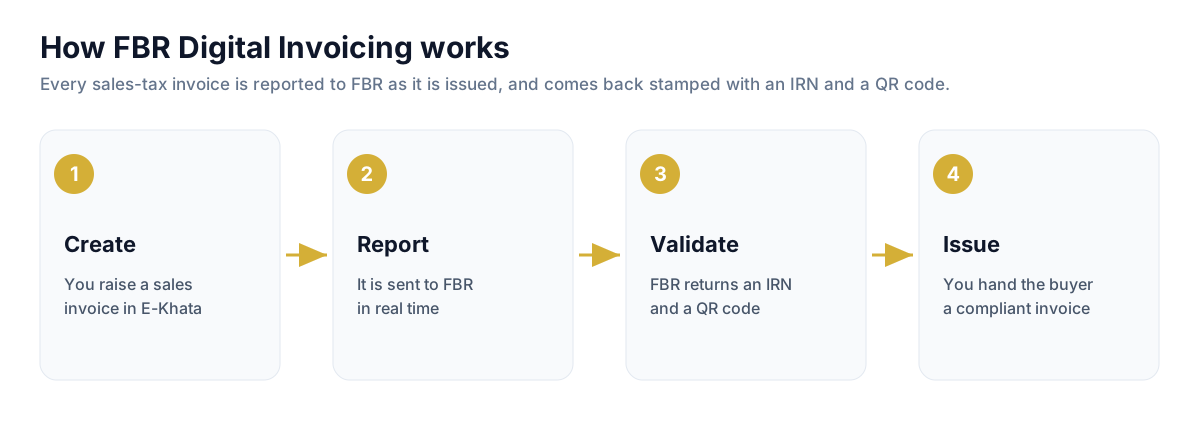
It also helps to understand the shape of what you are setting up. You are connecting your billing software to FBR so that each invoice is reported, validated, and stamped with a number and a QR code before it reaches the customer.
- An active sales-tax registration (STRN)
- Login access to IRIS (iris.fbr.gov.pk) with your CNIC or NTN
- The name and version of the software that will send invoices
- The server name and IP address that will connect to FBR
Register and integrate in IRIS, step by step
The enrolment itself runs inside the Digital Invoicing section of IRIS. Work through it in order. If your accounting software is already built for FBR Digital Invoicing, several of these steps are handled for you and you are mostly confirming choices.
- Sign in to IRIS. Log in to FBR's IRIS portal at iris.fbr.gov.pk with your CNIC or NTN. The whole enrolment is online, so there is no physical visit to an FBR office.
- Open Digital Invoicing. Inside IRIS, open the Digital Invoicing section. This is where you register your intent to integrate and manage your invoicing settings.
- Choose how you will integrate. Pick your integration mode: PRAL, the government integrator that is free of cost, or one of FBR's licensed private integrators, which charge a fee. If your accounting software is built for FBR Digital Invoicing, you are mainly choosing the connection rather than building it.
- Enter your technical details. Provide the technical contact, your ERP or software provider, and the software type and version, so FBR knows which system will be sending invoices.
- Set up IP whitelisting. Register the server that will send your invoices: its name, the country (Pakistan), and its IP address. This lets FBR accept invoice traffic only from you.
- Pass the sandbox scenarios. Before anything goes live, run FBR's assigned sandbox scenarios and confirm each one passes. Our free FBR Scenario Tester runs on this same sandbox, so you can check your scenarios at no cost.
- Move to production and go live. Once your sandbox scenarios pass, switch to the production environment, retrieve your live token, and begin reporting real invoices to FBR.
Test in the sandbox before you go live
FBR provides a sandbox environment that mirrors production. The point is to prove your invoices pass FBR's validation before a single real one is reported, so you are not debugging compliance on live sales.
We built a free FBR Scenario Tester on exactly this sandbox. You can run your assigned scenarios, see real pass or fail results, and fix anything before you certify. It is the lowest-risk way to know you are ready.
The simpler path with integrated software
If you would rather not handle the technical setup yourself, the shortcut is to use accounting software that is already built for FBR Digital Invoicing. The software produces the invoice in FBR's format, sends it for validation, and places the returned number and QR code on the document.
In that case your job shrinks to enrolling in IRIS, choosing PRAL or a licensed integrator, certifying in the sandbox, and switching to production. E-Khata is built this way, and you can prove the flow first with the free scenario tester.